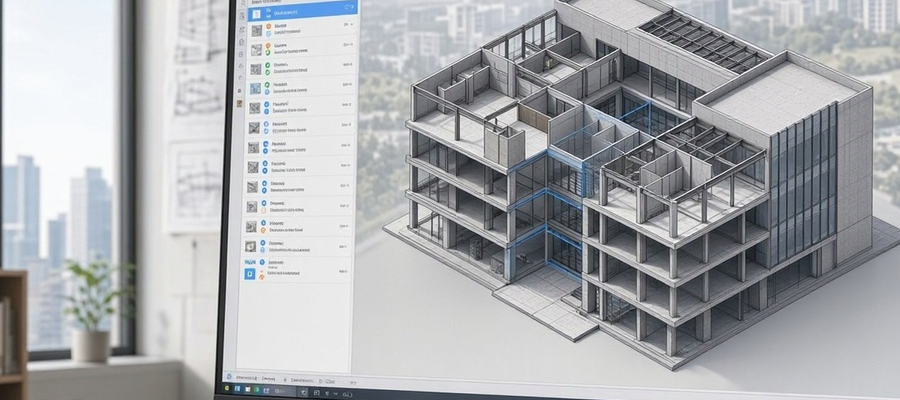
Who Changed What in the Model? See It Before the Coordination Meeting
Which Version Is Current, and Who Moved That Duct?
You know the sentence. Someone says it ten minutes into the coordination meeting, and the room goes quiet while three people check three different places. One has Teams open. One is scrolling email. One is hunting through Bluebeam markups for the PDF that someone swears was the latest.
That meeting runs 90 minutes. It puts $2,000 to $3,000 of labour in the room. Most of the first half goes to rebuilding the story of what moved since last week, not to deciding anything. The coordinator who prepared it already spent hours before that, opening two exports and flipping between them to spot differences by eye.
The cost does not stop when the meeting ends. A change nobody caught in the room travels on. It becomes a clash in the field, where the same problem costs $5,000 to $50,000 instead of the $50 it costs to fix in the model. Behind an unresolved one, idle field labour can burn $15K to $50K a week.
So the question is worth taking seriously. It is not a filing problem. It is a schedule, risk and cost problem that shows up as an awkward silence in a meeting. This article is the script for a short screen recording that answers the question on real screens, in four steps, before the meeting starts.
What We Do Before Anyone Sits Down
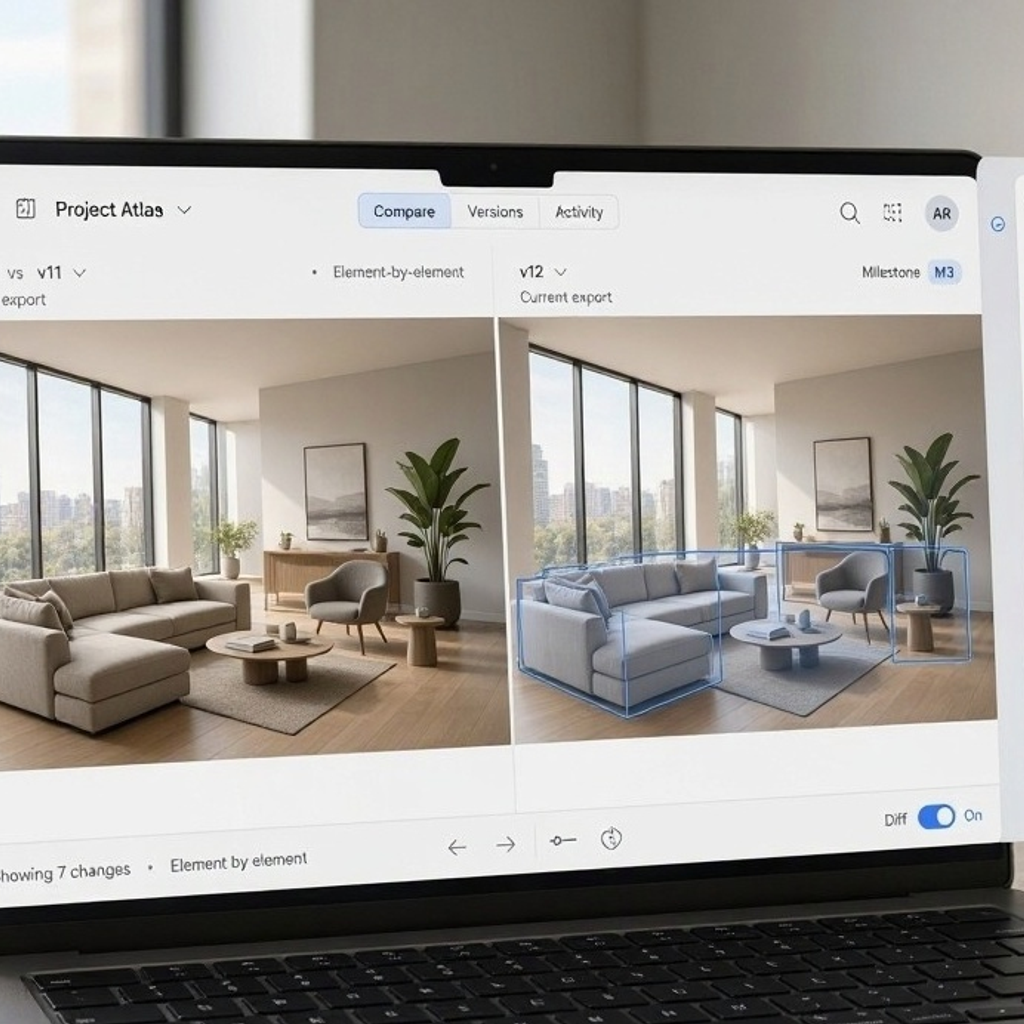
One line covers it. Every Revit and Navisworks export is versioned and diffed element by element, with the author and the milestone on it, so the team sees what changed in about 15 minutes. The diff is done on arrival. Nobody has to ask for it, and nobody has to build it by hand.
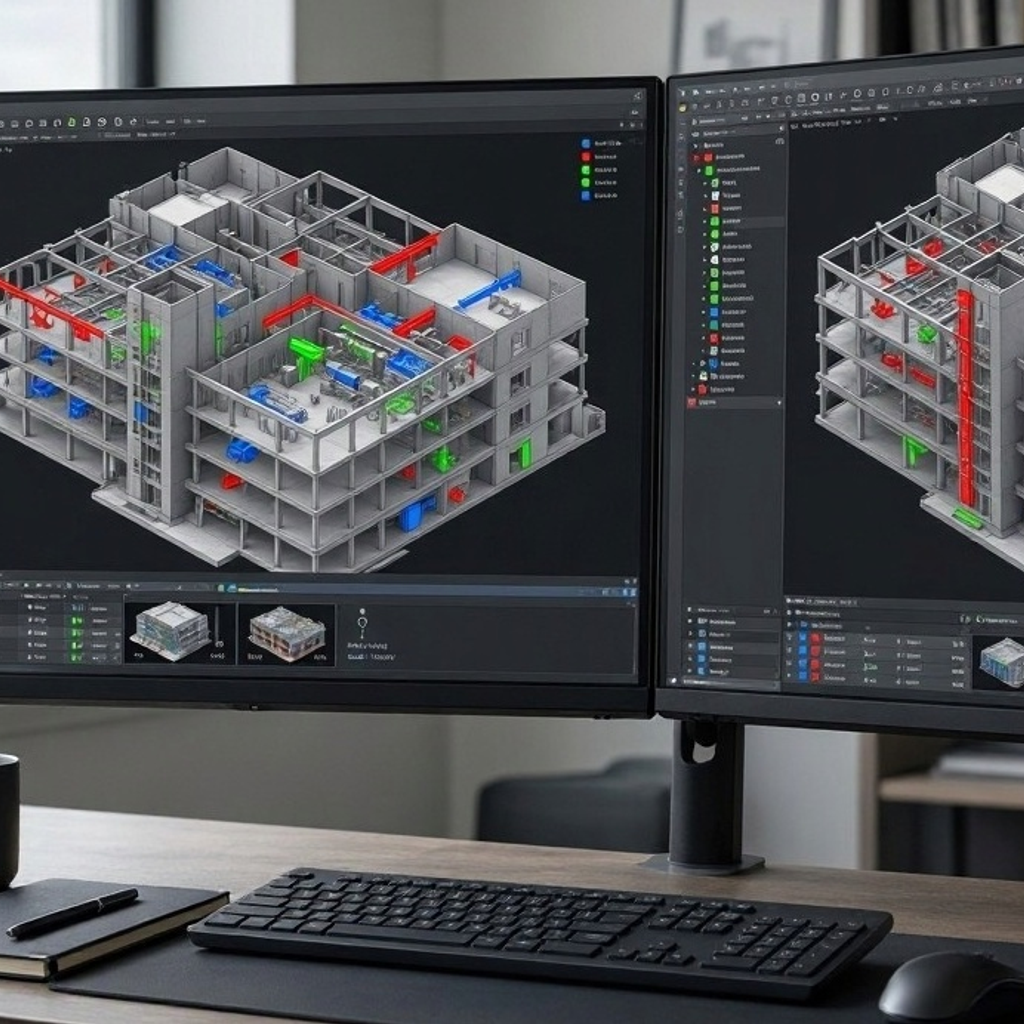
That changes what the meeting is for. Your team reads the list of changed elements ahead of time. They already know the duct moved, who moved it and at which milestone. The room is used for the decision: accept it, push it back, or pin an issue and give it an owner.
This sits in BIM coordination management, and it works inside Revit and Navisworks, not in a separate portal you have to remember to visit. The record is the model the team already works in. That matters because the changes that hurt are the quiet ones, a moved element in a category nobody was watching. A diff by category puts those in front of the right trade.
None of this asks anyone to guess. The diff shows what the project record holds today, between this export and the last one. It does not say what will happen next. It says what moved. That is the part a coordinator usually has to reconstruct from memory and screenshots.
The Walkthrough: Four Screens, One Real Export
Screen one: the new export lands in the project record. Start the recording on the project view with the previous export already listed. Show the new Revit export arriving and getting its version number on arrival. Say plainly what you see: the file, the date, the milestone it belongs to. Nothing is renamed by hand, and no one is asked to attach it to an email.
Screen two: the diff lists changed elements by category. Open the comparison between the new export and the last one. The list groups changes by category, so the mechanical coordinator goes straight to ducts and the structural lead goes straight to framing. Keep the cursor slow. Let the viewer read the categories before you click anything. Real screens only, from a real export, because a mockup cannot show how an actual list reads.
Screen three: click one element to see who changed it and in which revision. Pick the duct. The element opens with its history: the author, the revision, the milestone. This answers the question from the top of the article in one click. No one has to ask the room who moved it, and no one has to defend a guess.
Screen four: pin an issue to that element and tag the owner. Still on the same duct, create the issue right there. It is pinned to the element, so it stays attached to the thing it concerns. Tag the owner by name. The issue closes only with proof, which keeps a good intention from standing in for a fix.
The Caption, and the Ask
The recording needs a caption that does not oversell. Here is a version you can use as written: "One export, versioned on arrival and diffed against the last one, element by element. Changes by category, with the author and the milestone. Click an element to see who moved it. Pin the issue and tag the owner. This is how a 90-minute meeting becomes about 15 minutes." It states what the screens show and nothing more.
Keep the voiceover just as plain. Short sentences. Name the element, name the author, name the milestone. Skip adjectives about the tool. If the screens are real, the viewer can judge them without help, and a project manager can tell in seconds whether the list matches how their job moves.
The habit that follows is simple. Read the list before the meeting. Put the changed elements that need a decision at the top of the agenda. Pin issues as you go, so the owner is named before people leave the room. Then the problem gets solved in the model, where it costs about $50, not on site, where it costs $5,000 to $50,000.
That is the whole ask. Send us a model export and we will show you the diff on your own job. You will see your own categories, your own authors and your own milestones on the screen. If the list tells you something the last meeting did not, you will know what the 90 minutes were really buying.